
How Banners Work
When a player visits the homepage, banners cycle automatically every 5 seconds in a smooth carousel. When a player clicks on a banner:- If the linked category has a latest topic, the player is redirected to that topic.
- If there’s no latest topic, the player is redirected to the category page itself.
Creating a Banner
Fill in Banner Details
| Field | Required | Description |
|---|---|---|
| Title | Yes | The main heading displayed on the banner overlay |
| Subtitle | No | A secondary line of text below the title |
| Forum Category | No | The forum category this banner links to. When clicked, redirects to the latest post |
| Order | No | Controls the display order in the carousel (lower = first) |
| Banner Image | Yes (new) | Upload the image displayed as the banner background |
Editing & Deleting Banners
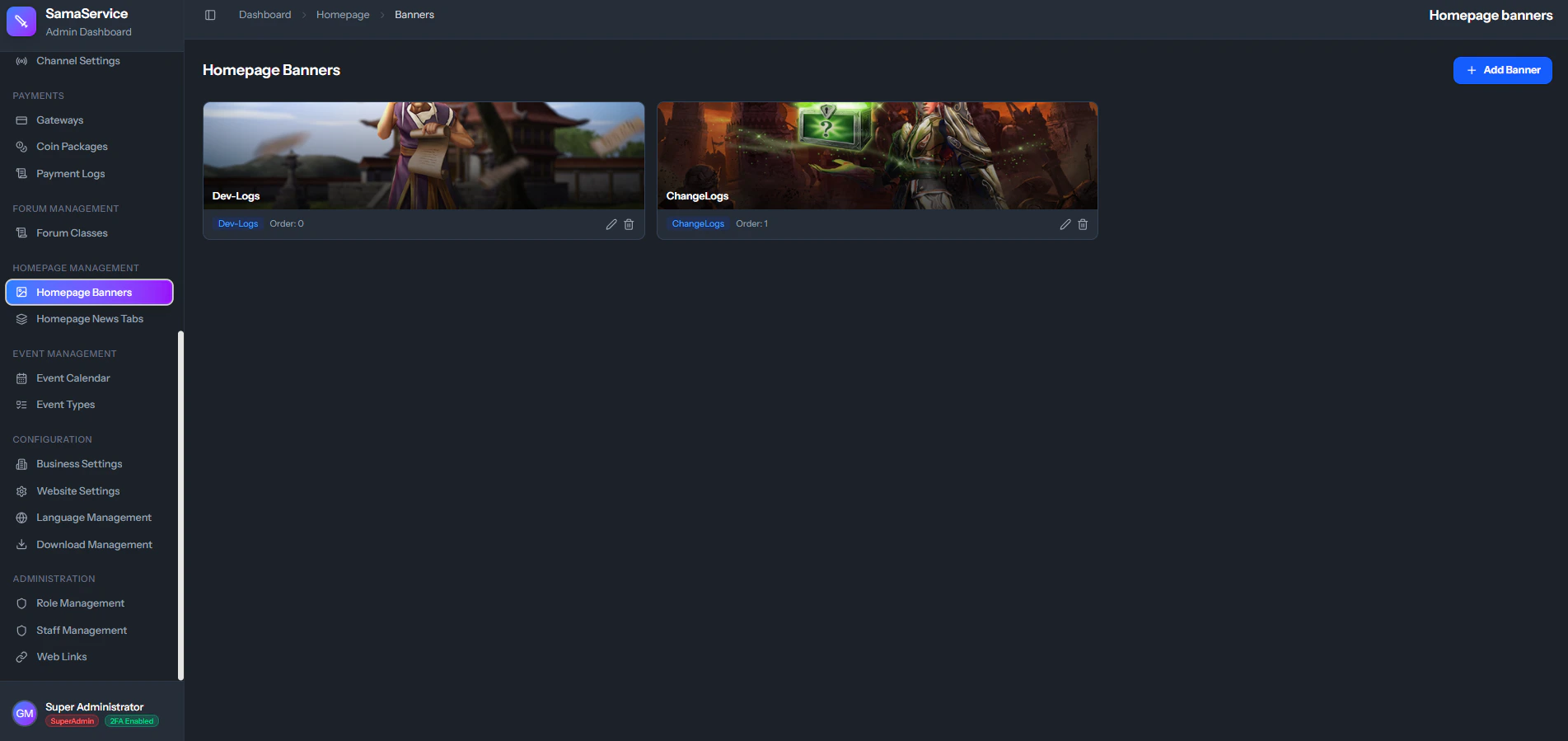
- Click the Edit icon on any banner card to modify its title, subtitle, linked category, order, or replace the image.
- Click the Delete icon to permanently remove a banner. A confirmation prompt will appear.
Best Practices
Image Dimensions
Image Dimensions
Use high-quality, landscape-oriented images for the best visual result. The carousel displays images in a cover mode, so wide images (e.g., 800×250 or wider) work best.
Keep it Fresh
Keep it Fresh
Rotate banners regularly to match current events and updates. Stale banners reduce engagement.
Link to Active Categories
Link to Active Categories
Always link banners to forum categories that have active content. A banner that leads to an empty category creates a poor user experience.