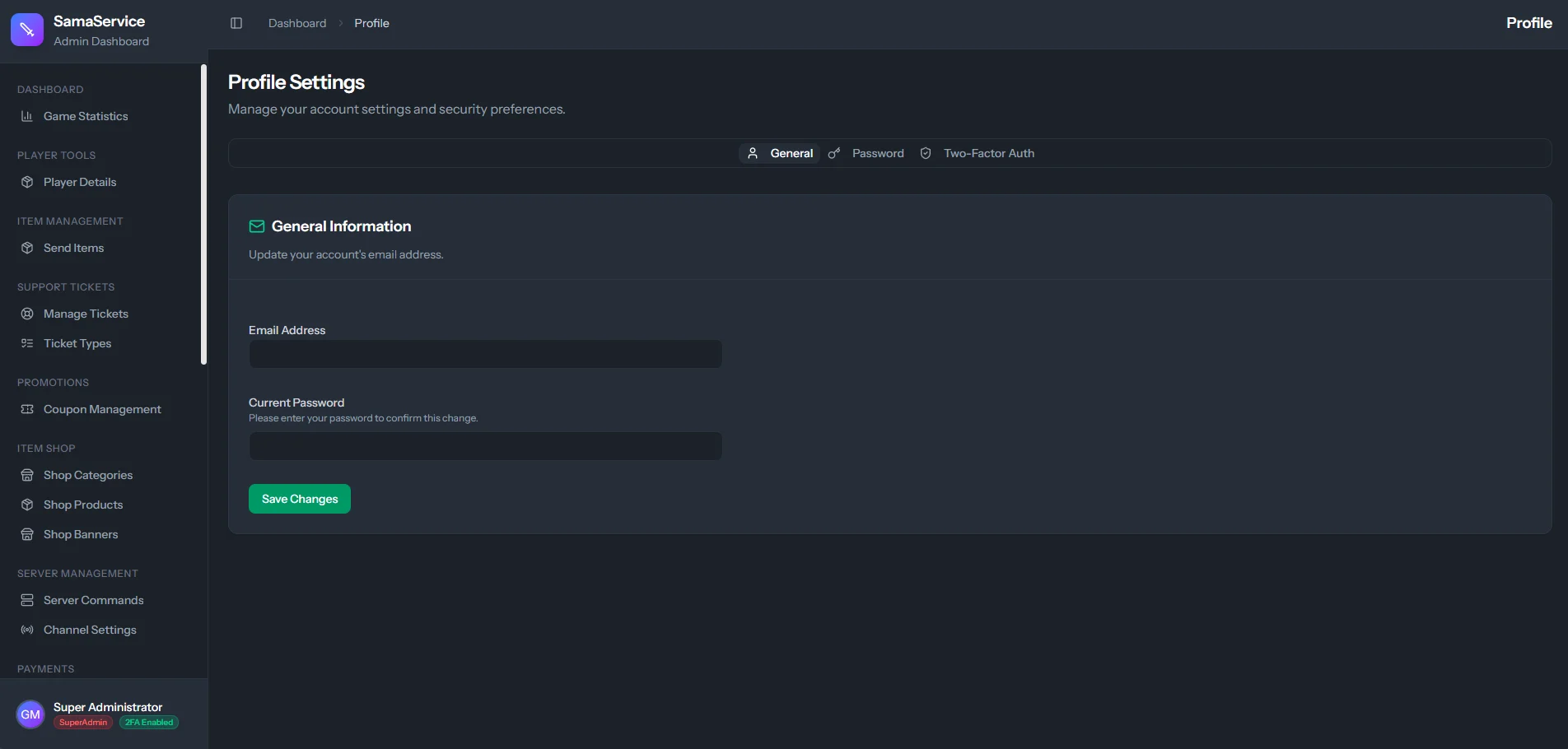
Accessing Your Profile
To access your profile settings, click on your username or avatar in the bottom left corner of the dashboard, and select Profile Settings from the dropdown menu.The dropdown menu also displays your current Role (e.g., SuperAdmin, Admin, Moderator) and whether you currently have 2FA Enabled or Disabled.
Profile Tabs
When you open your profile, your settings are divided into three main management areas:1. General Settings
1. General Settings
In the General tab, you can update the email address associated with your staff account.
- Enter your new Email Address.
- Provide your Current Password to verify and authorize the change.
- Click Save Changes.
2. Password Management
2. Password Management
For security reasons, we highly recommend changing your dashboard password periodically.
- Enter your Current Password.
- Enter and confirm your New Password.
- Click Update Password to save the changes.
3. Two-Factor Authentication
3. Two-Factor Authentication
The Two-Factor Auth tab is where you manage your Two-Factor Authentication settings (enabling, disabling, and viewing recovery codes).For a detailed guide on setting up 2FA to protect your account, please refer to the Security & 2FA documentation.