
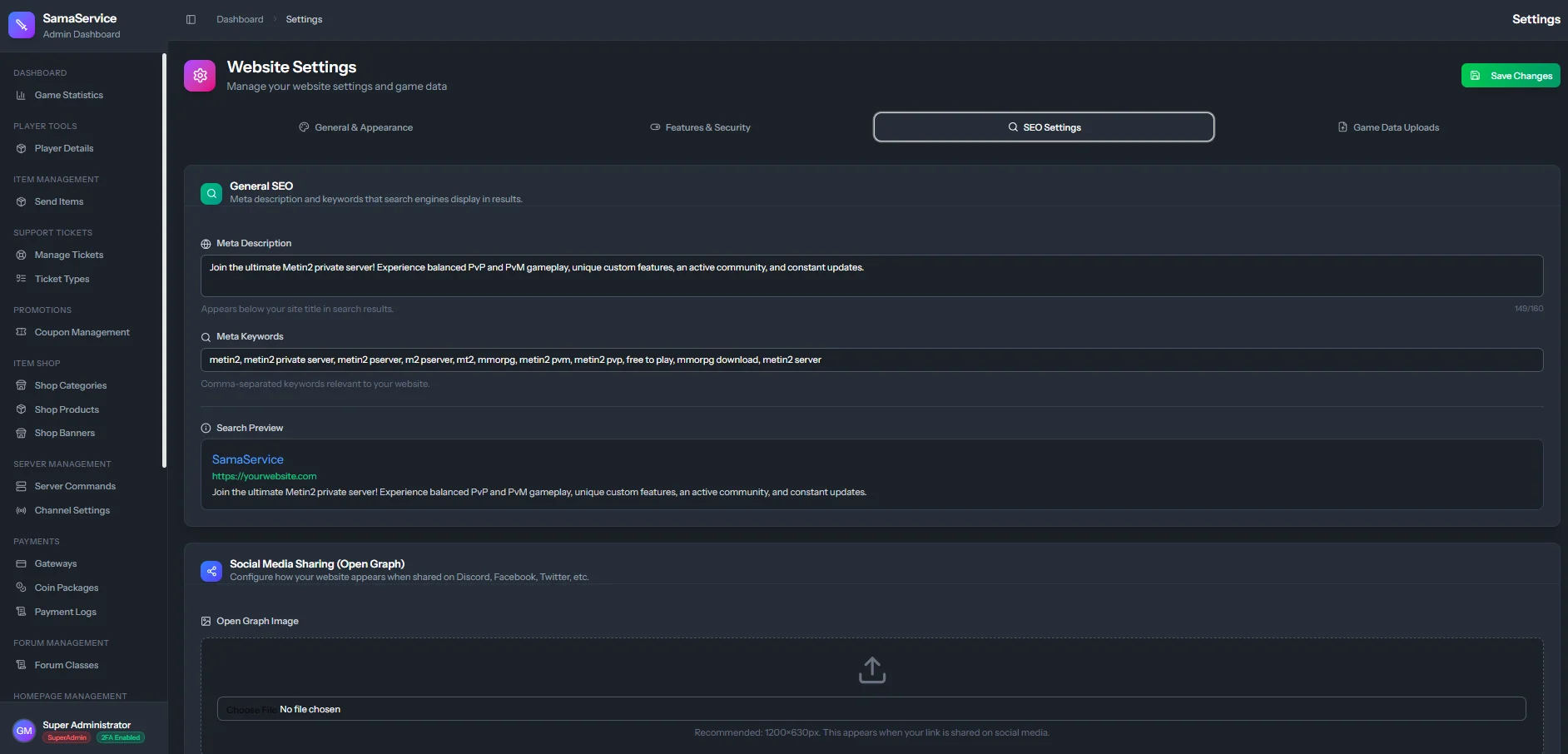
Configuration Options
Meta Description
Meta Description
A brief summary of your server (150-160 characters). This text usually appears under the blue clickable link in Search Engine results.
- Best Practice: Include the game type, max level, speed rates, and a call-to-action.
Meta Keywords
Meta Keywords
A comma-separated list of terms related to your server.
- Example: “Metin2, PServer, Oldschool, Hard PVM, Level 99”
Open Graph (OG) Image
Open Graph (OG) Image
The preview image that appears when a player shares your website link on Discord, Twitter, or Facebook.
- Recommended Format:
.jpgor.png. - Recommended Size: 1200x630 pixels. This is highly effective for Discord advertising campaigns to make your server stand out.
Analytics & Tracking
If you run paid advertisements or want to track player demographics, the CMS provides direct integrations:Google Analytics
Google Analytics
Paste your tracking snippet or
G-XXXXXXX Measurement ID here. This lets you track page views, bounce rates, and user locations via the Google Analytics dashboard without manually editing any source code.Google Site Verification
Google Site Verification
Used to verify ownership of your domain in the Google Search Console. Paste the HTML tag provided by Google here. This allows you to monitor how your site performs in Google Search results.
Custom Head Tags
Custom Head Tags